Background
In response to Microsoft’s upcoming deprecation of Exchange Web Services (EWS), Gllue will upgrade the email sending and receiving mechanism for Microsoft mailboxes from EWS to Microsoft Graph API, ensuring continued and stable email service.
Microsoft official announcement:
- Exchange Online EWS, Your Time is Almost Up | Microsoft Community Hub
- Migrate Exchange Web Services (EWS) apps to Microsoft Graph – Microsoft Graph | Microsoft Learn
Re-linking Instructions
The upgrade is scheduled to be released during the evening of June 17, 2026. Once the upgrade is completed, users who use Microsoft email accounts in Gllue will need to re-link the accounts listed below on or after June 18, 2026:
- Microsoft work email accounts connected to Gllue for email sending and receiving
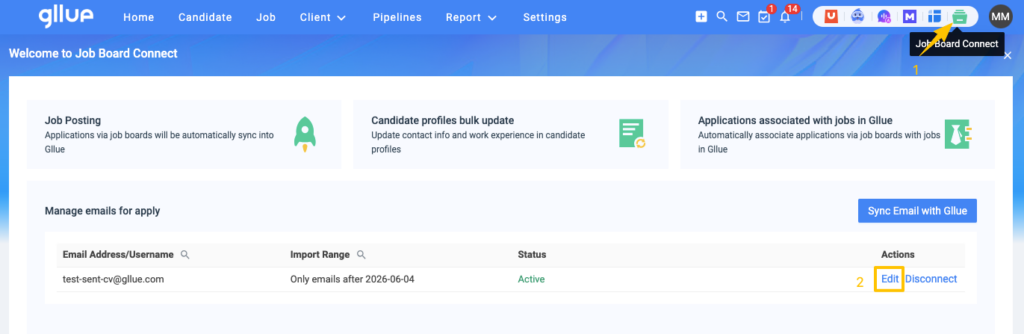
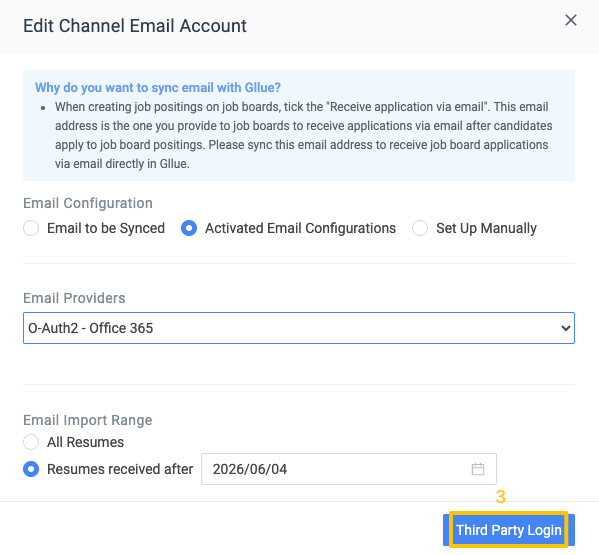
- Microsoft email accounts connected to the Job Board Connect feature
Once the accounts are re-linked, Gllue will automatically switch to the new email processing method. For details, please refer to the sections below: [Administrator Important Note] and [Consultant Steps].
To avoid any interruption to email sending and receiving, please complete the re-linking process in a timely manner. Thank you for your understanding and cooperation.
Administrator Important Note
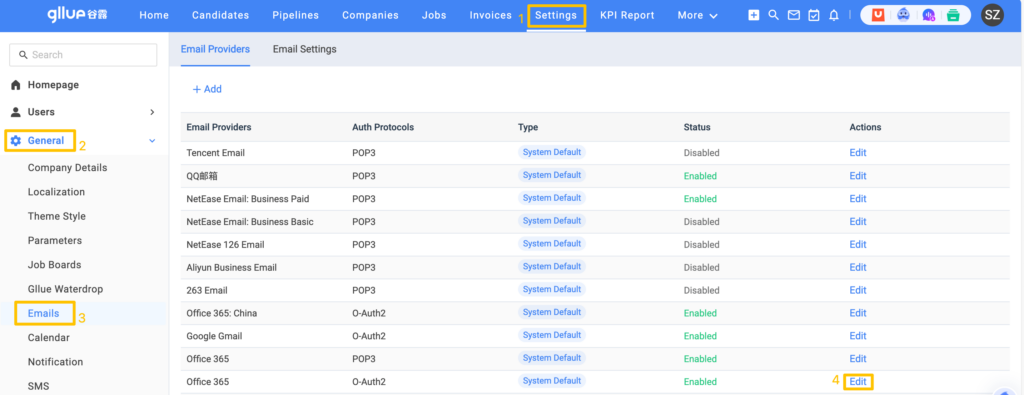
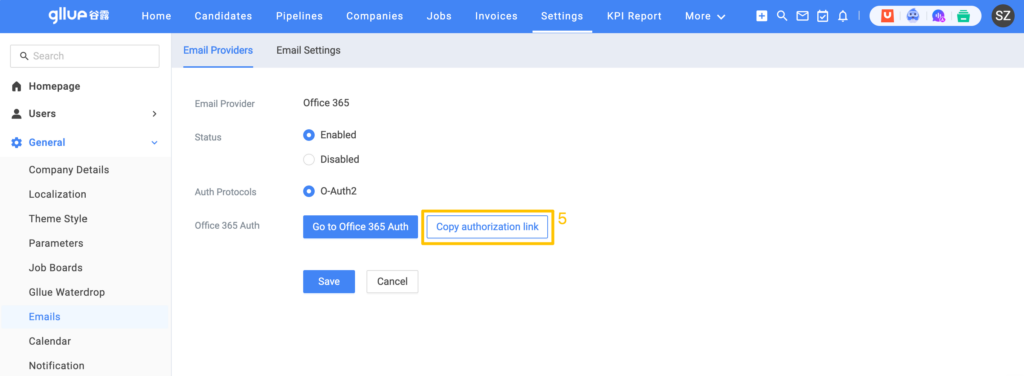
If your Microsoft tenant requires administrator consent for third-party applications, please obtain the administrator consent link as shown below and send it to your Microsoft administrator. Please ensure that the consent request is approved using a Microsoft administrator account before users re-link their email accounts.
Please refer to the screenshots below for how to obtain the Administrator Consent Link from Gllue:
Consultant Steps
1. Microsoft work email accounts connected to Gllue for email sending and receiving
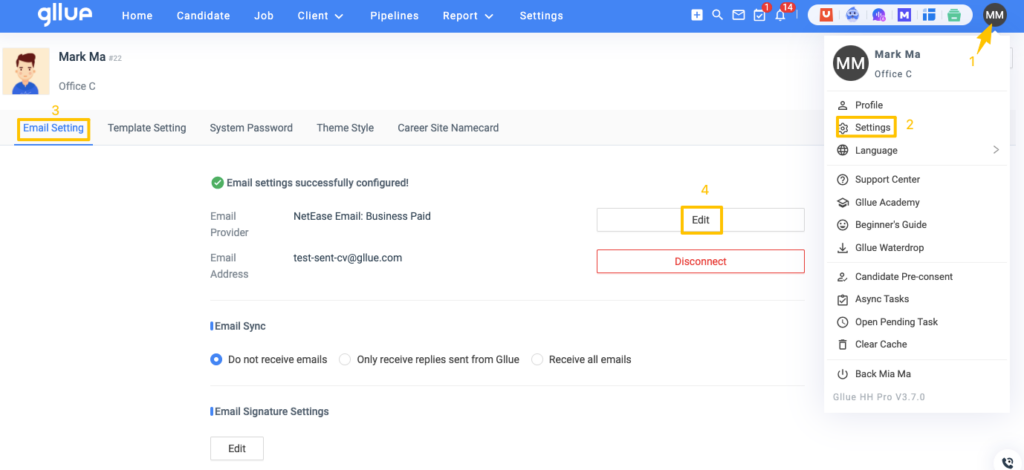
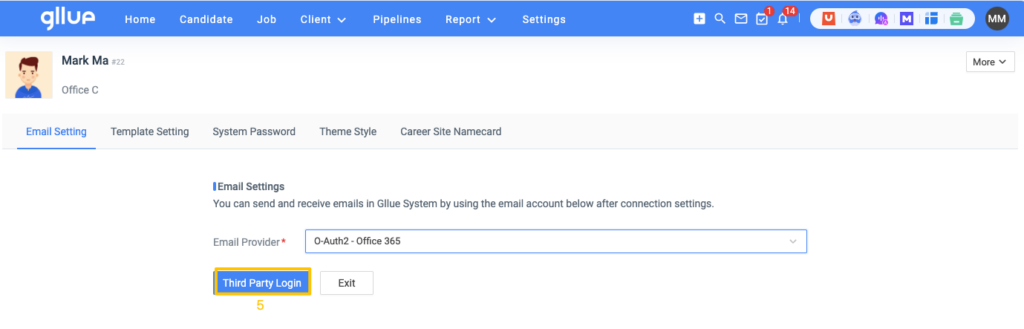
Click the avatar in the top-right corner → Settings → Email Settings → Edit → Re-link email account
2. Job Board Connect email re-linking
Click the green “Job Board Connect” icon in the top-right corner → Edit → Re-link email account