Gllue’s search functionality allows you to use an array of powerful search features to locate specific candidates (or groups of candidates) in your database.
3.2.1 Searching on Candidate Search page
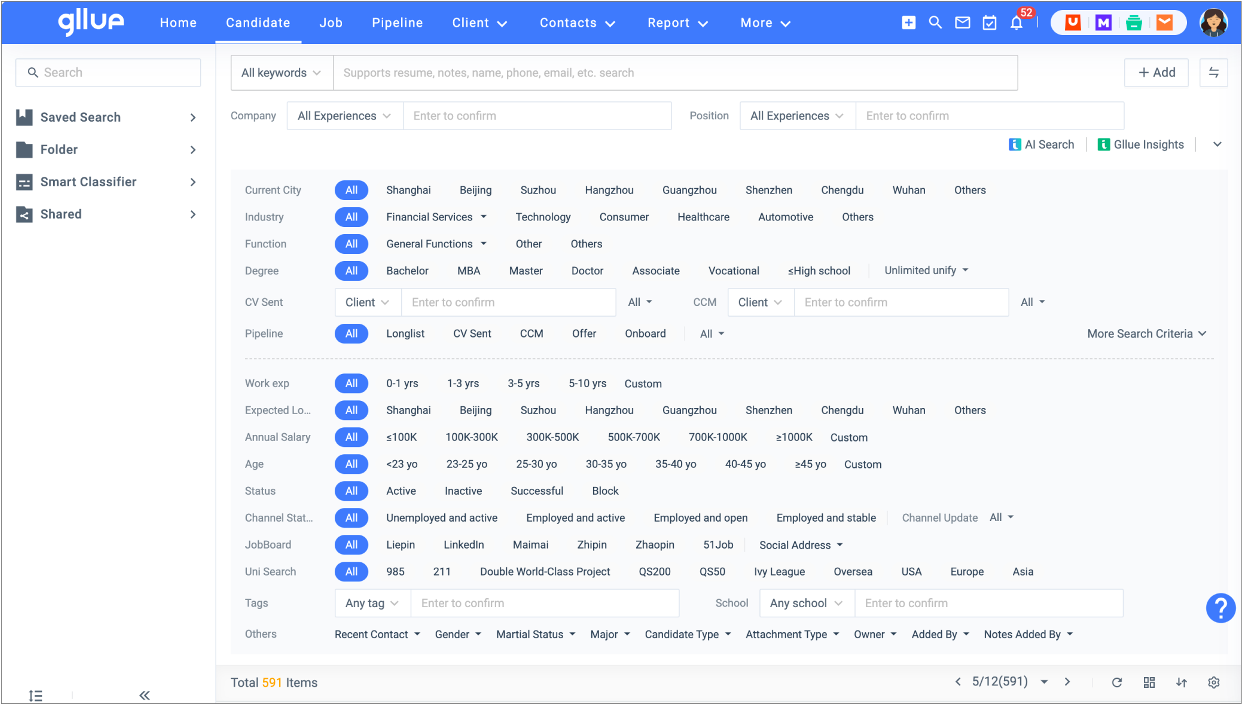
It contains the following most frequently used criteria/filters:
- Keyword Search: Gllue Keyword Search searches across the Candidate Entity including all fields of candidate profile (e.g. name, mobile, email address, employer, etc.) and the Note Entity.
- Company Search: Company search functionality is bolstered by Gllue’s professional data solution ‘Gllue Knowledge Graph’ which has a broad coverage of business entities in the China market based on a decade’s of experience in the recruitment industry. No matter in what way company names are written, accurate search results are returned in an efficient manner because ‘Gllue Knowledge Graph’ addresses spelling variations, abbreviations, inclusion or omission of the legal form and different formatting of company names . The Company Search also searches across Chinese and English.
- Industry/Function: It displays the top 5 frequently searched options by default and the order can be adjusted in the Settings by your Admin.
- Pipeline: It supports searches by recruitment process. For example, when you search ‘client interview’, results come back with the candidates that are currently in the Client Interview stage or who have previously had client interviews.
- Uni Search: It supports searches based on university ranking systems (e.g. Project 985, Project 211, QS200, etc. ) and the regions where the universities are located. The dataset of normalized universities is part of ‘Gllue Knowledge Graph’.
3.2.2 Omni Search
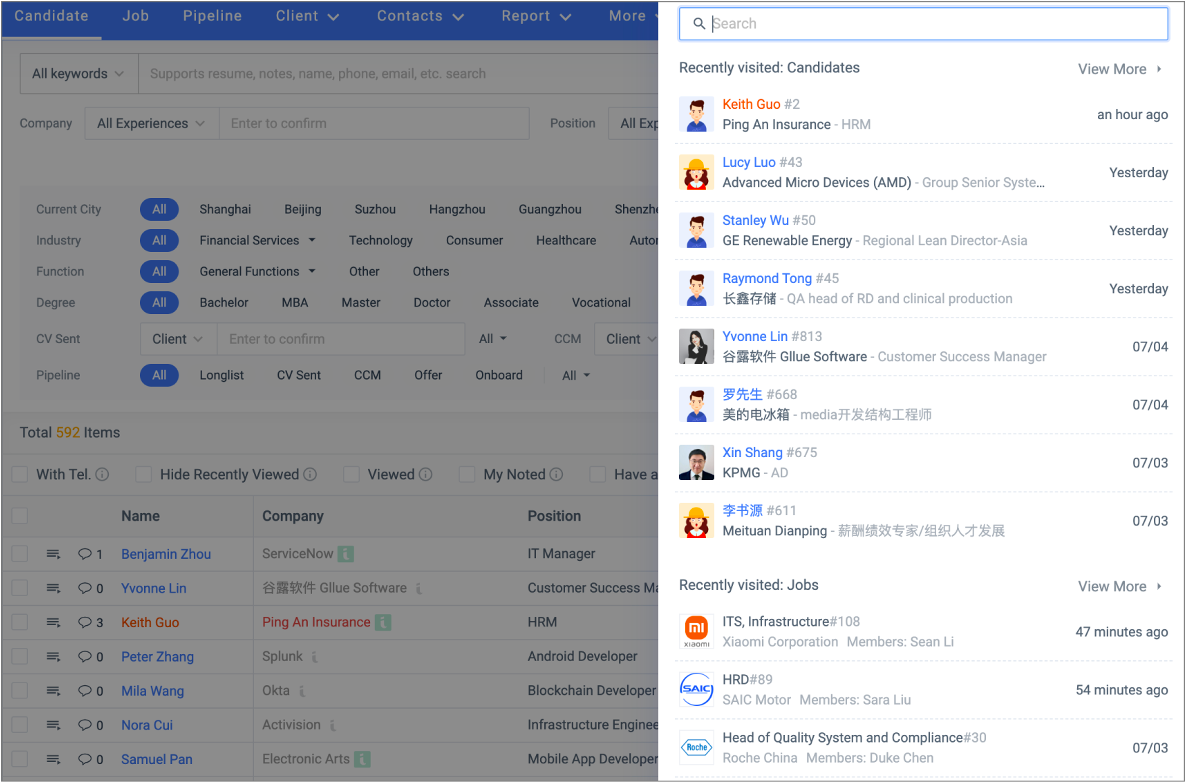
Omni Search is a search bar on the upper right corner of your Gllue environment. As you type your search term, the menu beneath the search bar will populate with the latest 10 records you visited. You can access the full visit history by clicking ‘View More’. It supports keyword search across the following entities:
- Client
- Candidate
- Job
3.2.3 Basic Search
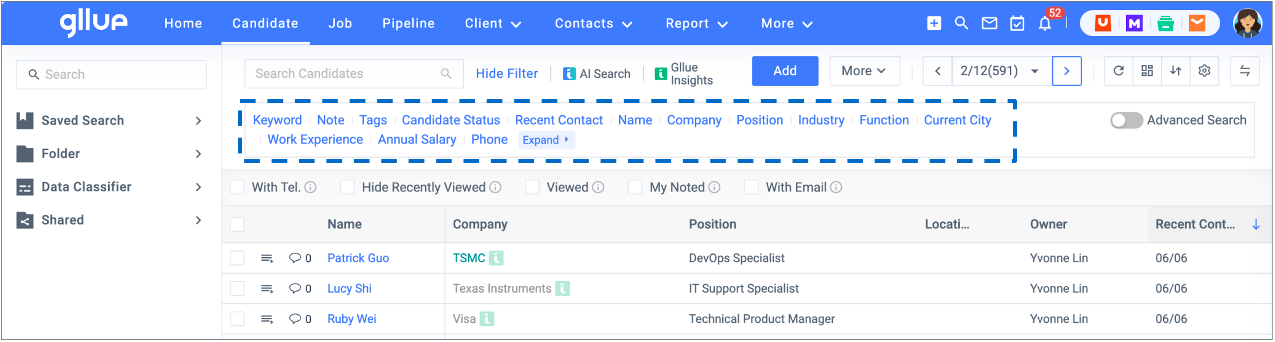
If your firm encourages that you use a particular set of search criteria more often, navigate to ‘Basic Search’ after your Admin completes the configuration in the Settings.
3.2.4 Advanced Search
Advanced Search is a powerful search tool that allows you to create various combinations of custom search terms for complex searches under each entity.
It also includes a Boolean feature. Navigate to Basic Search, enable Advanced Search. Boolean feature offers two UI options depending on the setting by your Admin.
- New: Select a field, enter your specific keywords, choose a Boolean operator such as ‘and’, ‘or’ and ‘not’ from the drop-down menu to create your search rules.
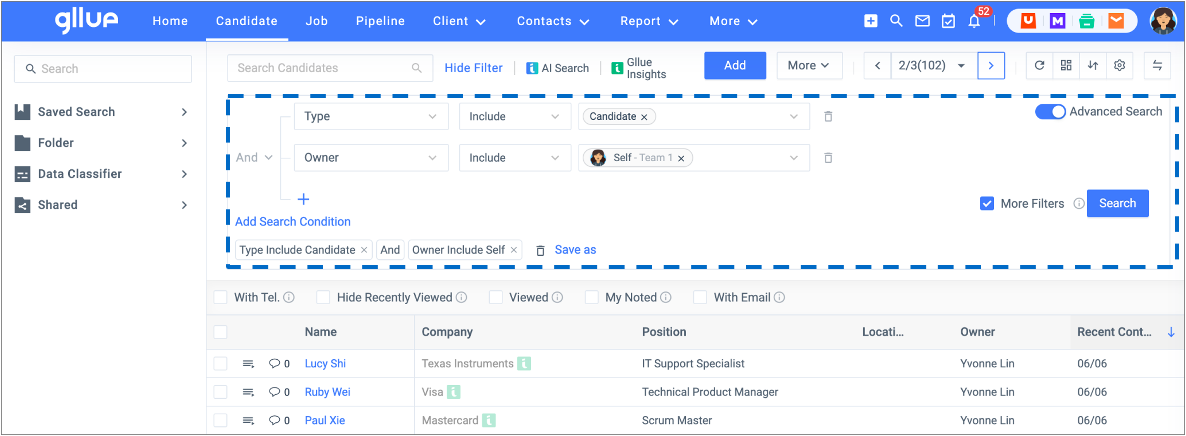
- Classic: Select a field, enter your specific keywords, drag and drop Boolean operators such as ‘and’, ‘or’ and ‘not’ to create your search rules.
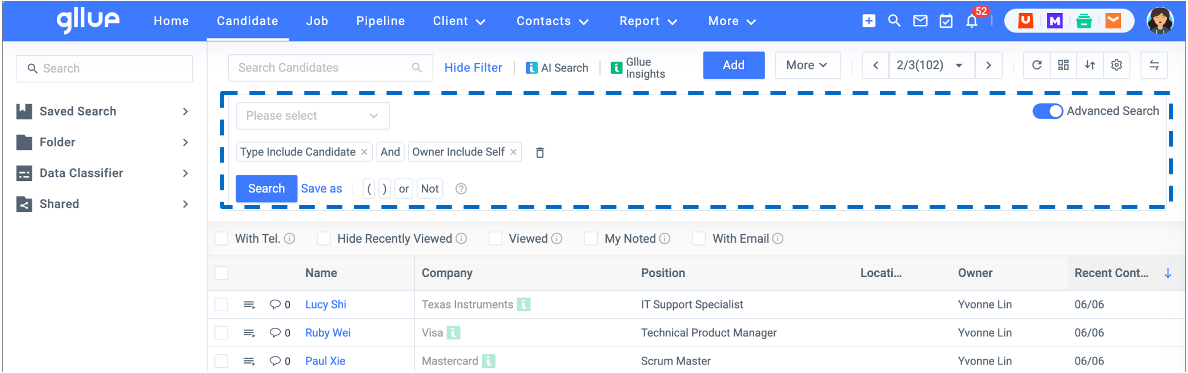
3.2.5 Quick Filters
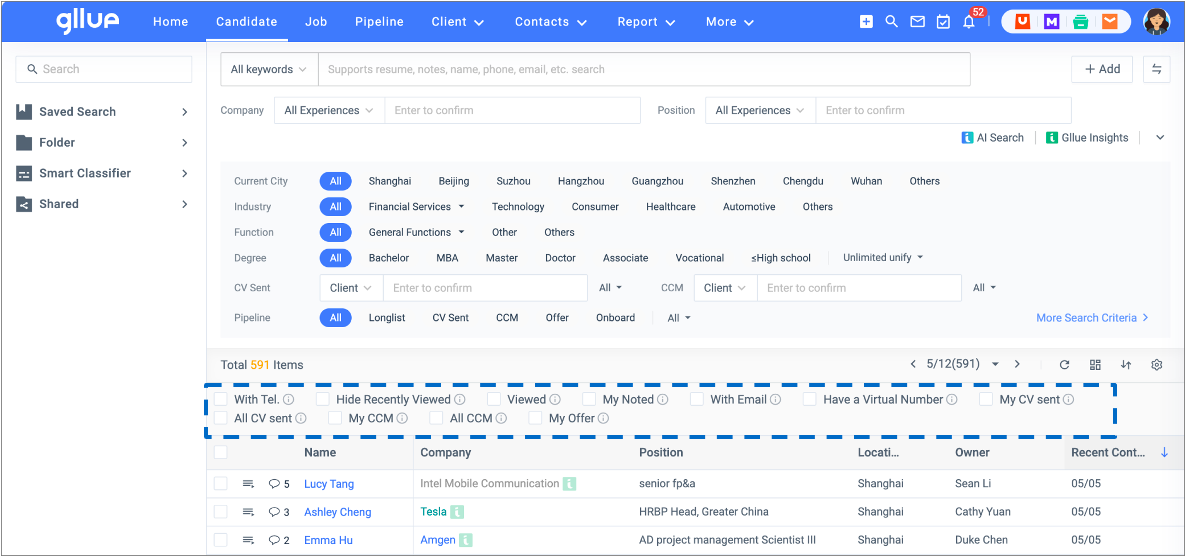
The checkboxes above the search results are Quick Filters which enable you to further narrow down cohorts of candidates after you run a direct search and help you pinpoint specific candidates that you are looking for:
- My Offers
- With a Phone Number
- Hide Recently Viewed
- Viewed
- With My Notes
- With Email
- With a Virtual Number
- My CV sent
- All CV sent
- My CCM
- All CCMs
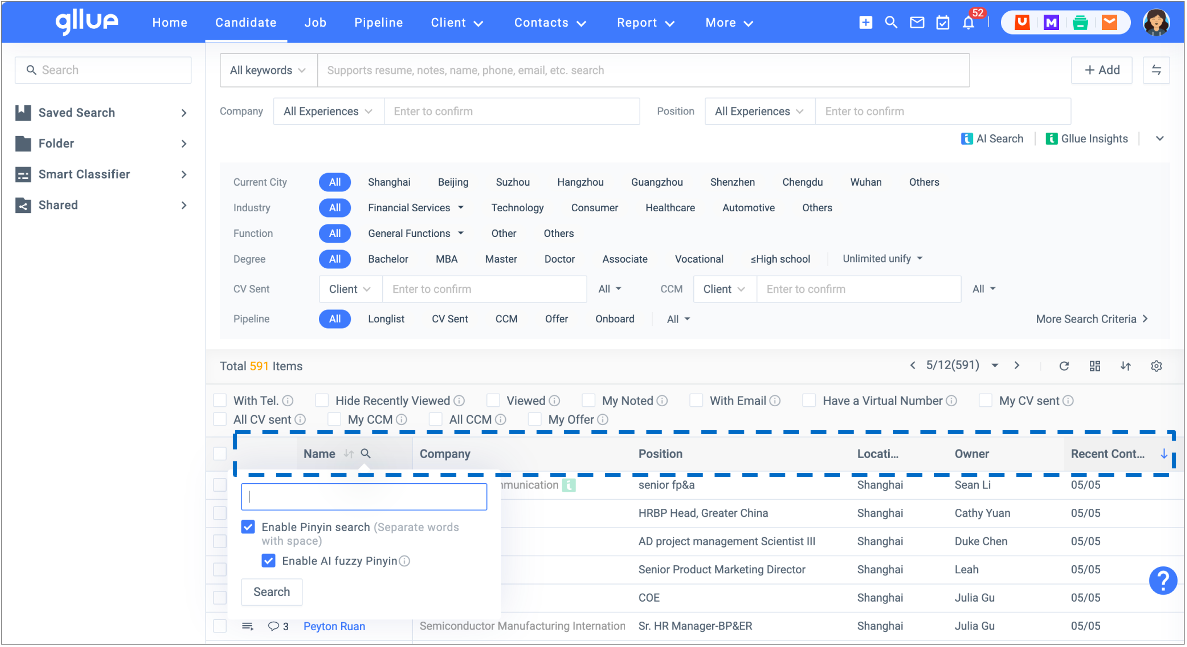
3.2.6 Header Search
The header search was designed to accommodate users who are proficient in Excel. When you hover over the column headers, a magnifying glass icon and sort icon will appear next to the column headers. The magnifying glass icon indicates that it is a search tool which also supports Pinyin Search (the phonetic symbols for Chinese characters).